Viewing phone contacts in the Zoom Mobile App
Overview
You can view your phone's contacts to the Zoom Mobile App, allowing you to invite them to sign up for Zoom or call them using Zoom Phone.
Note: This article provides an alternative to directly syncing your contacts with a third-party service. Contacts sync is not supported on the Zoom Mobile App, but you can follow this article to sync contacts with your phone's native contacts app then import the contacts into Zoom.
This article covers:
Prerequisites
- Zoom Mobile App for Android or iOS
Syncing contacts with a third-party service (optional)
Most native contacts apps support syncing with a third-party services like Google, Office 365, or Exchange. Visit your phone manufacturer's support site if you need help syncing your phone's contacts app.
After enabling sync, you can view your phone contacts in the Zoom mobile app.
Viewing phone contacts in Zoom
Note: If you're using iOS, make sure you grant Zoom access to your contacts. Open Settings and navigate to Privacy then Contacts. Tap the toggle for Zoom.
- Sign in to the Zoom Mobile App.
- Tap Settings.

- Tap Contacts then Phone Contacts Matching.
- Enter your phone's number so Zoom can confirm it.

- Tap Next.
- When prompted, click OK.
Zoom will send a text message to confirm your phone's number. - If prompted, enter the verification code, then tap Next.
Note: Only some regions will not require a verification code.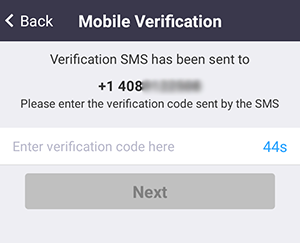
Note: If you're using an Android device, tap Allow when prompted to grant Zoom access to your phone contacts.
Your imported contacts will appear in the Phone Address Group under My Groups.
- Tap the contact's name.
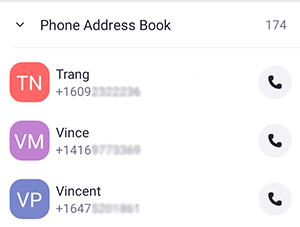
- Tap Phone Call to call the contact using Zoom Phone.
Note: If the contact has several numbers, you will be prompted to select a number to call.
Related Articles
Accessing Zoom voicemail greeting or hold music settings
Accessing the voicemail greeting or hold music setting 1. Sign in to the Zoom web portal. 2. In the navigation menu, click Phone. 3. Click the Settings tab. 4. Navigate to one of the following settings: · Voicemail Greeting: In ...Getting Started with Zoom
https://support.zoom.us/hc/en-us/articles/201362033-Getting-Started-on-Windows-and-MacZoom - Selecting, recording, or uploading your voicemail greeting or hold music
Overview If you have Zoom Phone activated on your account, you can use the audio library to select, record, or upload custom audio for these settings: Voicemail Greeting: Plays before routing the call to your voicemail. Hold Music: Plays for the ...How to Book a Conference Room in Outlook
Conference rooms are set up as resources in Outlook. To reserve a room, you add it to your meeting invitation—just like inviting people. Book a Room Using Outlook (Desktop App) Open Outlook. Go to the Calendar. Select New Meeting. Enter the meeting ...How to Setup One Drive account
Step 1 – Open Chrome and click on the Application Launcher Step 2 – Select OneDrive Step 3 – Select Sync Step 4- Sign in Step 5- Enter your password Step 6 – Click on Next (about 4 times) until ask to open One Drive You are all set! you’ll see it ...